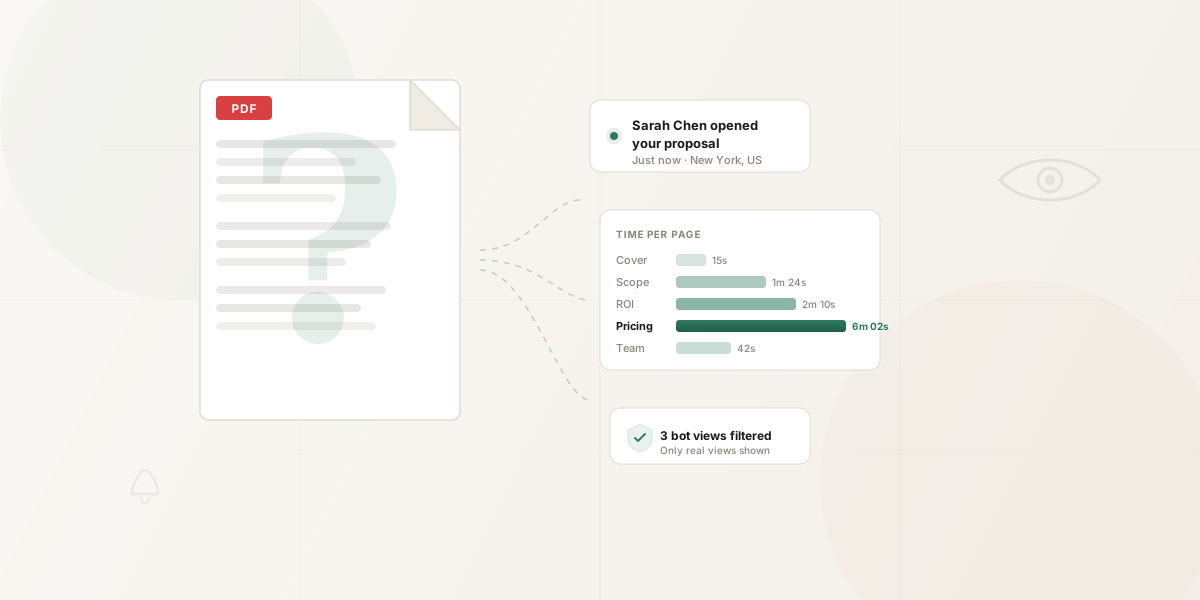
To track if someone opened your PDF, upload it to a document-tracking tool and share a link instead of an email attachment. You then see when it is opened, by whom, and which pages they read. Plain attachments and email read receipts cannot reliably tell you any of this.
You sent the PDF on Monday. By Thursday, you're in limbo. Did they open it? Did it land in spam? Did they read the pricing and close it immediately? You have no idea, because the moment you attach a PDF to an email and hit send, you go blind.
PDFs don't have read receipts. They don't phone home. A PDF sitting in someone's Downloads folder is indistinguishable from one that was never downloaded at all. And yet PDFs carry your most important documents — proposals, contracts, pitch decks, offer letters. The delivery mechanism provides exactly zero information about what happens next. If you're sending PDFs as email attachments, the problem is even worse — see our guide on how to track email attachments.
There are ways to close this gap. Some are free but limited. Some are cheap but misleading. One actually tells you what you need to know. Here are six methods, ranked from least to most useful.
Short on time?
You can't track PDFs sent as email attachments. Upload your PDF to HummingDeck, share a tracked link instead, and see exactly who reads which pages. Try it free →
Method 1: Email read receipts and tracking pixels
Verdict: Doesn't track the PDF. Only (sometimes) tracks the email.
The most common first instinct is email-level tracking. There are two flavors: read receipts and tracking pixels.
Read receipts are a protocol-level feature (the Disposition-Notification-To header) that asks the recipient's email client to notify you when they open the message. In theory, this gives you a timestamp and confirmation of receipt.
In practice, it almost never works. Gmail ignores read receipt requests entirely on personal accounts — no prompt, no notification, the request is silently discarded. Outlook gives the recipient a pop-up asking whether they want to send a receipt, and most people reflexively click "no." Apple Mail lets users disable them globally. Corporate IT departments frequently suppress them across the organization. Even when a read receipt does come through, it confirms the email was opened — not that the attachment was downloaded or read.
Tracking pixels are a step up. Many sales and email tools embed an invisible 1x1 pixel image in outgoing emails. When the image loads on the recipient's end, the tool registers an "open." This works silently — no pop-up, no recipient interaction required.
But tracking pixels are deteriorating fast. Apple Mail Privacy Protection, launched in 2021, pre-fetches all email content — including tracking pixels — whether or not the user actually opens the email. Every message sent to an Apple Mail user now looks "opened." Given that Apple Mail accounts for roughly 55–60% of all email opens, more than half of your open data may be fiction. Microsoft and Google are rolling out similar protections. The trend line points in one direction: email open tracking is becoming less reliable every year.
And here's the fundamental problem: even perfect email open tracking doesn't answer your question. You want to know if someone read your PDF. Email tracking tells you whether they opened the message that had the PDF attached. Those are three separate events — email opened, attachment downloaded, PDF read — and this method only captures the first one, unreliably.
The false confidence trap
The worst outcome isn't a missing notification — it's a false positive. If Apple Mail pre-loads the tracking pixel and you follow up with "I saw you had a chance to look at the proposal," but they haven't, you've revealed that you're tracking them and been wrong about it simultaneously. That's worse than silence.
Good for: Knowing an email was probably seen. Not useful for tracking what happened to the PDF inside it.
Method 2: Adobe Acrobat "Send & Track"
Verdict: Exists, but limited.
Adobe has a built-in tracking feature in Acrobat Pro. You upload your PDF to Adobe's cloud, share it as a link, and get a notification when someone opens it. The recipient views the PDF in Adobe's web viewer rather than downloading a local copy.
This is worth mentioning because it's the first thing many people find when they search for "track PDF opens," and it does technically work.
What you get: A notification that the document was viewed, the viewer's email (if they signed in), and a timestamp. Basic stuff.
What you don't get: No per-page analytics. No time-on-page data. No way to see which sections the reader focused on, where they dropped off, or what links they clicked. No bot detection. No real-time alerts beyond the initial open notification.
The friction problem. Recipients sometimes get prompted to sign in or create an Adobe account before viewing. In a sales context, that's a conversion killer. Every additional step between "click the link" and "read the proposal" is a step where prospects bail. If your buyer has to create an Adobe login to see your pricing, some percentage of them simply won't.
The cost. Acrobat Pro runs approximately $23/month. If you're already paying for it because you use other Acrobat features, Send & Track is a reasonable add-on. If your only reason to subscribe is document tracking, the analytics are too shallow to justify the cost.
Adobe also used to support JavaScript-based tracking embedded directly in PDF files (callbacks that fired when the file was opened in Adobe Reader). This was removed years ago following privacy backlash. If you find old blog posts suggesting you embed tracking scripts in PDFs, that approach no longer works.
Good for: Someone who already has Acrobat Pro and needs a simple binary — opened or not opened — for a specific document. Not built for sales workflows where you're tracking multiple prospects across multiple documents.
Method 3: Google Drive, Dropbox, or OneDrive shared links
Verdict: Free, but surface-level.
Instead of attaching the PDF to an email, you upload it to cloud storage and share a link. This is a meaningful step up from email attachments because the document stays on a server you can monitor, rather than disappearing onto someone's local machine.
Here's what each platform provides:
Google Drive shows a "last viewed" timestamp and the viewer's email address — but only if they're logged into a Google account. If they're not signed in, or if they're using an incognito window, the view shows up as "Anonymous." You can check this in the file's Activity panel, but there's no push notification — you have to go look.
Dropbox provides view counts and viewer email addresses for shared links. Similar limitations: unauthenticated viewers are anonymous. You can see that someone accessed the file, but not much else.
OneDrive offers comparable basic tracking through its file activity log, with the same authentication requirement for viewer identification.
What none of them provide:
No per-page analytics. You know the file was accessed, but not whether the reader spent 20 minutes on the pricing section or 4 seconds on the cover page before closing it. No time-on-page data. No real-time notifications (you have to manually check the activity panel). No click tracking for links inside the document. No bot detection — security scanners open cloud storage links just like any other URL, and these platforms don't filter them from your view counts.
The presentation problem. When your recipient clicks a Google Drive link, they see the Google Drive interface — toolbar, menu bar, sharing controls, "Sign in with Google" prompts, suggestion to "Open in Docs." When they click a Dropbox link, they see the Dropbox viewer with download prompts and Dropbox branding. If you spent hours making your proposal look clean and professional, the delivery undercuts that work. The medium becomes part of the message, and the message is "I shared this through my personal file storage."
Good for: Internal sharing within your team, casual sends where tracking isn't critical, or situations where you just need to confirm that someone accessed the file at all. Not useful for sales intelligence.
Method 4: Google Analytics and Tag Manager (website PDF downloads)
Verdict: Solves a different problem entirely.
If you search "how to track PDFs" right now, most of the results you'll find are guides for setting up Google Analytics 4 events or Google Tag Manager triggers to track PDF downloads on your website. GA4's enhanced measurement can automatically fire a file_download event when someone clicks a link ending in .pdf on your site. With a bit of GTM configuration, you can get more granular — tracking which specific PDFs were downloaded, from which pages, by which traffic sources.
This is useful for marketing teams measuring content performance. If you have whitepapers, case studies, or product guides on your website and you want to know how many people download them, GA4 does the job. You'll see aggregate download counts, conversion paths, and which traffic sources drive the most engagement with your PDFs.
But this doesn't solve the sales tracking problem. GA4 tracks the download event on your website. It doesn't tell you what happens after someone downloads the file. You know 47 people downloaded your whitepaper last month. You don't know who they are (beyond anonymized session data), which pages they read, how long they spent reading, or whether they forwarded it to their boss.
More critically, GA4 only tracks PDFs hosted on your website. If you're emailing a PDF to a specific prospect — which is the scenario most salespeople, consultants, and freelancers are actually in — GA4 is irrelevant. It can't track a file attached to an email or shared via a link to cloud storage.
Good for: Marketing analytics at scale. Understanding which content assets on your website drive engagement. Not useful for tracking whether a specific person read a specific document you sent them.
Method 5: Link shorteners (Bitly, etc.)
Verdict: One step up from nothing.
Here's a workaround some people use: host your PDF somewhere accessible (cloud storage, your own website, a file hosting service), then share the link through a URL shortener like Bitly, Short.io, or similar. The shortener tracks clicks, giving you aggregate data on how many people accessed the link, when, and from what geographic region.
This is marginally better than raw cloud storage links because you get push notifications for clicks and some demographic data. If you're sharing a PDF publicly — posting it on social media, including it in a newsletter — a shortened link gives you a rough sense of reach.
The limitations are significant for sales use:
You know the link was clicked. You don't know what happened next. Did they actually view the PDF, or did the page load and they immediately closed it? Which pages did they read? How long did they spend? Did they share it with anyone else? None of that is visible.
The bot problem applies here too. Enterprise email security scanners — Microsoft Defender SafeLinks, Proofpoint, Mimecast — automatically click every link in incoming emails to scan for malware. These scanners don't identify themselves as bots. They use real browser user agents. So when your prospect's corporate email system scans the shortened link, Bitly registers it as a click. Your analytics say someone engaged with your document when in reality a security bot did.
And the link itself looks generic. bit.ly/xR4kQ2 doesn't convey professionalism. In a sales context where trust matters, a branded, clean link to a professional viewer is a better experience than a shortened URL that the recipient may hesitate to click.
Good for: Social media or newsletter distribution where you want aggregate click metrics. Useful as a free, quick solution when all you need is a rough click count. Not useful for 1:1 sales tracking.
Already using Gmail?
The HummingDeck Chrome extension lets you share tracked PDFs right from Gmail — replace the attachment with a tracked link in one click. Install the Chrome extension →
Method 6: Dedicated document tracking tools
Verdict: Full visibility. This is the category built for this problem.
Dedicated document tracking tools work on a simple principle: instead of attaching a PDF to an email, you upload it to the platform and share a link. The recipient opens the link and views the document in a clean, branded web viewer. Every interaction — every page view, every click, every second spent reading — is recorded and attributed.
This is the only method that answers the question you're actually asking: not just "did they click the link?" but "what did they do with the document?" If you're choosing among these tools, our document tracking software comparison evaluates eight options by attribution, page analytics, scanner handling, access controls, and useful-tier pricing.
What you get
Real-time open notifications. The moment someone opens your document, you get an alert — by email, in-app, or both. The notification includes the viewer's name (if the link is personalized), their approximate location, the device they're using, and the time. You don't have to check a dashboard or refresh a panel. You know immediately.
Per-page analytics. This is the feature that changes everything. Instead of a binary opened/not-opened signal, you see which pages the viewer looked at, how long they spent on each one, and in what order they navigated the document. You can see that they spent 6 minutes on the pricing page, 15 seconds on the cover page, and skipped the case study entirely. That's not just data — it's a map of their priorities.
Drop-off analysis. Where do readers stop reading? If your proposal is 12 pages and most viewers bail after page 4, there's something wrong with page 4 — or pages 1 through 3 aren't creating enough momentum. This turns your document from a static asset you send and hope for the best into something testable and improvable. Fix the weak slide, re-share, measure again.
Click tracking. If your PDF contains links — to your website, to a case study, to a booking page, to an ROI calculator — you can see which ones get clicked. Knowing that a prospect clicked your pricing link but not your case study link tells you where they are in their decision process.
Multiple viewer detection. When your prospect forwards the document to their CFO, their legal team, or their boss, you see new viewers appearing. Multiple unique viewers on the same link is one of the strongest buying signals in B2B sales workflows — the deal is being discussed internally. For fundraising teams sending pitch decks plus financials plus cap tables to investors, the same signal applies; secure data rooms for fundraising bundle multi-document tracking under one branded link so every asset reports back together.
Bot detection. This is the feature that separates document tracking from everything else on this list. When you share a link by email, the recipient's mail client, corporate security gateway, and antivirus software all "click" the link before any human does. Microsoft Defender SafeLinks, Proofpoint URL Defense, Mimecast, and Google Safe Browsing automatically open links and scan content to check for phishing and malware.
These security scanners look like real users to most tracking tools. They use real browser user agents — "Chrome 120 on Windows 11" — so basic analytics systems can't tell the difference. The result: your dashboard says 47 people viewed your document when 31 of them were bots.
The good tools in this category detect and filter these automated views, so your data reflects real human engagement. Without bot filtering, you're making follow-up decisions based on fiction. For a deeper look at how these scanners work and how to identify them, see our breakdown of email security bots and inflated analytics.
How this changes your follow-up
Tracking data is only useful if it changes your behavior. Here's what to do with it.
They spent heavy time on pricing, light time on everything else. They're in comparison mode. They don't need more convincing that your solution works — they need convincing that it's worth the price. Your follow-up should lead with ROI and value justification, not another case study. "I noticed you've been reviewing the proposal — happy to walk through the pricing model and how it maps to the outcomes we discussed."
Strongest buying signal
Two people from the same company opened the document on the same day. The deal is being evaluated by a group, which means it's moving through an internal approval process. Don't wait — offer to help: "It looks like your team has been reviewing the proposal. Would it be helpful to schedule a quick walkthrough so I can address any questions from the group?"
They opened it, bounced after page one. Your intro isn't connecting. Maybe the first page is too generic. Maybe they expected something different based on your email. Consider sending a brief message that reframes the value: "The key insight is on page 4 — the ROI model we built based on your numbers." Give them a reason to go back.
Opened four times in three days, heavy time on the scope section. This is your warmest lead. They're seriously evaluating. Call now — not tomorrow, not after your next email sequence fires. Now.
Zero opens after five business days. The document might be in their spam folder. The email might have bounced silently. They might simply be buried in work. Don't assume disinterest — the delivery might have failed. Re-send with a different subject line, or try a different channel entirely: LinkedIn message, text, phone call. Zero opens is itself valuable data because you know with certainty they haven't seen your work yet. You're not pestering them by re-sending — you're making sure they receive what they asked for.
How the tools compare
Document trackers differ most in attribution, page-level depth, scanner handling, access controls, and the price of the tier that includes each feature. Our comparison of eight document tracking tools covers DocSend, Papermark, HummingDeck, Digify, Sizle, PandaDoc, HubSpot Documents, and Adobe Acrobat using those criteria.
For a multi-document deal, a deal room can group tracked PDFs, case studies, contracts, and next steps behind one stable link. For a single PDF, choose the tracker that provides enough identity confidence and analytics without adding workflow you do not need.
Comparison table
FAQ
Can you track a PDF sent as an email attachment?
Email attachments aren't trackable: once a PDF is downloaded, it's a local file (offline, disconnected, invisible) with no callback mechanism back to you. (Adobe briefly supported JavaScript callbacks in PDFs that could fire on open, but this was removed years ago due to security and privacy concerns.) The workaround is to share PDFs as tracked links rather than attachments, which bypasses the local-copy problem entirely.
To get tracking, you need to share a link to a hosted version of the document instead of attaching the file directly. The link opens a web-based viewer that records engagement — which pages were viewed, for how long, and by whom.
Can Adobe Acrobat track PDF opens?
Yes, through the "Send & Track" feature in Acrobat Pro. You upload the PDF to Adobe's cloud and share it as a link. Adobe notifies you when the document is opened and shows basic view data. However, the analytics are limited — no per-page engagement, no time tracking, no bot detection. It also requires an Acrobat Pro subscription (~$23/month) and sometimes prompts recipients to sign in, which adds friction.
Does Google Drive show who viewed a PDF?
Partially. Google Drive's Activity panel shows who viewed a shared file and when, but only if the viewer was signed into a Google account. Anonymous or incognito viewers show up as "Anonymous" with no identifying information. You also don't get per-page analytics, time-on-page, real-time notifications, or any engagement depth beyond "this person accessed the file."
Is it ethical to track PDF views?
PDF tracking through link-based tools is functionally equivalent to standard website analytics. When someone visits any webpage, the server records their IP address, device type, browser, and pages viewed. Document tracking works the same way — the recipient clicks a link, views a page in their browser, and the server logs the interaction. No software is installed on their device. No personal data is collected beyond what any normal web visit records.
In a sales context, both sides benefit from better-informed conversations. The seller follows up at the right time with the right message. The buyer gets a relevant follow-up instead of a generic "just checking in." Most prospects, when told about tracking, find it reasonable — especially compared to the alternative of repeated blind follow-ups.
How does bot detection work for PDF tracking?
When you share a link by email, the recipient's mail client and corporate security tools often "click" the link automatically before any human sees it. Microsoft Defender SafeLinks, Proofpoint URL Defense, Mimecast, and Google Safe Browsing all scan incoming links to check for phishing and malware. These scanners use real browser user agents, so basic analytics tools can't distinguish them from actual viewers.
Document tracking tools with bot detection identify these automated views using behavioral signals — such as the speed of interaction, the pattern of page navigation, and known bot signatures — and filter them from your analytics. Without this filtering, 15–40% of your apparent engagement may be bot traffic, depending on your recipients' email security configurations. For more detail, see our guide to email security bots and inflated analytics.
What's the difference between tracking PDF downloads and tracking PDF reads?
Tracking downloads (via Google Analytics or a link shortener) tells you that someone clicked a link and initiated a download. It's a count — 47 people downloaded your whitepaper this month. You don't know who they are, whether they opened the file after downloading, or what they thought of it.
Tracking reads (via a dedicated document tracking tool) tells you that a specific person viewed your document, which pages they looked at, how long they spent on each one, whether they came back multiple times, and whether they shared it with others. One is a marketing metric. The other is sales intelligence.
How long should I wait before following up on a PDF I sent?
If you have tracking data, you don't have to guess. When the data shows the recipient opened the document and spent significant time on it, follow up within 24 hours while it's fresh. If they opened it briefly and bounced, give it 2–3 days before re-engaging with a different angle — they may not have been convinced by the framing. If they haven't opened it at all after 3–5 business days, re-send or try a different channel. The point of tracking is to replace arbitrary timing rules with responses to actual behavior. For a deeper look at follow-up strategies based on engagement data, see our guide to knowing if someone read your proposal.
Can you track a PDF shared on social media?
Not per-reader, but you can measure aggregate engagement. If you share a tracking link on LinkedIn or Twitter, the document tracking tool will record total views, geographic distribution, and per-page engagement across all viewers. You won't know which specific LinkedIn connections viewed it (unless they enter their email through an optional capture form), but you'll see how the content performed overall — which pages held attention, where readers dropped off, and how much time people spent. For social distribution, combine this with a link shortener for click-level data alongside the in-document engagement data.
Related: Share PDFs with per-page tracking | Can you track email attachment opens?