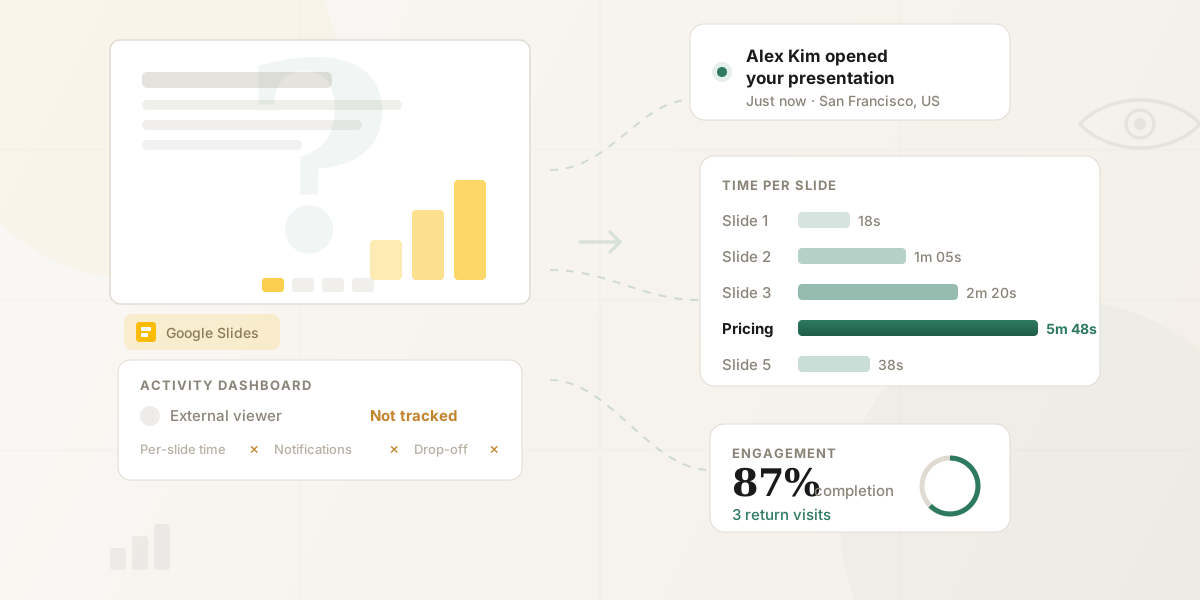
Yes, you can see who viewed your Google Slides: open the deck and go to Tools → Activity dashboard → Viewers. That covers viewers inside your Google Workspace, but not external viewers, personal Gmail accounts, or which slides anyone actually read. To track those, you share the presentation as a tracked link with per-slide analytics.
You shared a Google Slides presentation with a prospect and now you're wondering: did they open it? Which slides did they spend time on? Did they skim the pricing section or study it carefully?
Google Slides has a built-in Activity Dashboard, but it only tracks viewers within your own Google Workspace organization — the one audience you probably care about least. This guide covers the native method, its five critical limitations, and how to get full per-slide engagement analytics on externally shared presentations.
Short on time?
Google's Activity Dashboard only works for internal Workspace users. To track external viewers with per-slide analytics, use the HummingDeck Google Slides add-on. See the full comparison →
The built-in method: Google Slides Activity Dashboard
Google Workspace includes an Activity Dashboard that shows who has viewed your file. To access it:
- Open your Google Slides presentation.
- Click Tools in the top menu.
- Select Activity dashboard.
- Click the Viewers tab to see who viewed the file and when.
Alternatively, click the small trend-line icon in the top-right corner of your presentation to open the same dashboard.
The Viewers tab shows each person's name and their last access time. The Viewer trend tab shows daily unique views over a selected period. The Sharing history tab logs when the file was shared and with whom.
What it actually tells you
The dashboard gives you a straightforward list: who opened the file and when they last opened it. For internal collaboration — confirming that your team has reviewed a deck before a meeting — it works fine.
You can also use the Shared with tab to see who has access and send a reminder directly if someone hasn't viewed the file yet.
Five limitations that matter for external sharing
The Activity Dashboard works for internal collaboration. When you're sharing Google Slides with people outside your organization — prospects, clients, investors, partners — it breaks down in important ways.
1. It only works within your Google Workspace organization
This is the biggest limitation. The Activity Dashboard only shows viewer data for people within your Google Workspace domain. If you share a presentation with someone at a different company, a personal Gmail user, or anyone not on your Workspace plan, their views either don't appear or show as anonymous.
For sales teams sharing decks with prospects, the one viewer you care about most is invisible.
2. Personal Gmail accounts can't access it
If you're using a personal @gmail.com account rather than a Google Workspace business account, the Activity Dashboard isn't available at all. You won't see the option under Tools.
3. Viewers can opt out of being tracked
Any Google Workspace user can disable their own view history in privacy settings. When they do, a dash appears next to their name instead of a timestamp. You know they have access — you just can't tell if they've used it.
To check this yourself: open the Activity Dashboard, click Privacy settings, and toggle the Account setting (all files) or Document setting (current file only).
4. "Anyone with the link" sharing disables tracking
If you've shared your presentation with "Anyone with the link" — common when sending a deck externally — the Activity Dashboard can't identify individual viewers. You might see that someone viewed it, but you won't know who.
5. No engagement depth whatsoever
Even when the Activity Dashboard works perfectly, it only tells you that someone opened the file. If you need deeper tracking than Google provides, our proposal tracking software comparison covers the tools that fill this gap. The Activity Dashboard doesn't tell you:
- How long they spent viewing the presentation
- Which slides they looked at
- Which slides they skipped
- Whether they came back for a second look
- What links or elements they clicked inside the deck
- What device or location they viewed from
Knowing a prospect opened your deck is useful. Knowing they spent four minutes on the pricing slide and came back to re-read the case study the next morning is actionable intelligence.
The follow-up gap is costly
The MIT/Kellogg Lead Response Management Study found that responding within 5 minutes of a prospect's engagement makes you 21x more likely to qualify the lead. Without real-time visibility into when someone views your deck, you're guessing at timing — and losing deals to faster competitors.
Why this gap matters for sales, fundraising, and client work
When you share a Google Slides presentation in a business context, you're almost always sharing it with someone outside your organization — precisely the scenario where the Activity Dashboard fails.
Consider the typical workflow: you build a sales deck in Google Slides, export it or share a link with a prospect, and wait. Without engagement data, your follow-up options are:
- Wait and hope. Send a "just checking in" email after a few days.
- Guess at timing. Call on Tuesday because that seems reasonable.
- Ask directly. "Did you get a chance to review the deck?" — which puts the prospect on the spot.
None of these are informed by what actually happened with your presentation.
Now imagine knowing this instead: your prospect opened the deck 20 minutes after you sent it, spent three minutes on the product overview, six minutes on pricing, skipped the team slide entirely, and came back the next day to re-read the pricing section. That changes everything about how and when you follow up — and what you say when you do.
According to research compiled by Invesp, 48% of salespeople never attempt a single follow-up — yet 60% of customers say "no" four times before saying "yes." Timing those follow-ups based on actual engagement rather than arbitrary schedules is what separates effective outreach from noise.
Founders raising a round face the same gap with investors. HummingDeck for fundraising handles this exact case: per-slide engagement on pitch decks shared with VCs. For benchmarks on what investor reading patterns look like — average time per slide, where partners pause — see our latest pitch deck reading data.
How to get full analytics on a Google Slides presentation
The approach is simple: instead of sharing a Google Slides link directly, share your presentation through a tracked link that logs every interaction. There are two ways to do this.
Option 1: Share directly from Google Slides with the HummingDeck add-on
If you'd rather not break your workflow, HummingDeck's Google Workspace add-on creates tracked sharing links directly from inside Google Slides — no PDF export needed. Build the deck in Slides, click the add-on in the sidebar, generate a link, and share it. Your recipient sees a clean, professional viewer. You see full per-slide engagement analytics.
This is the fastest path: you stay in Google Slides, avoid the download-upload cycle, and get the same analytics you'd get with a dedicated tracking platform. If you create proposals in Google Slides and want to understand how tracking tools differ from full proposal management platforms, see our proposal tracking vs. proposal management guide.
Option 2: Download your deck and upload to a tracking platform
Go to File → Download and choose PDF Document (.pdf) or Microsoft PowerPoint (.pptx). PDF is usually the better choice — it preserves your layout exactly and loads faster for recipients. If you go the PDF route, see our guide on how to track if someone opened your PDF.
Upload the file to a document tracking platform and share presentations with slide-level analytics. The recipient sees your deck in a clean viewer. You see full analytics. For sales teams running multi-stakeholder deals, this is also where digital sales room platforms earn their place — by bundling the deck with proposals and contracts under one tracked link.
With a tracked link, you get:
- Who viewed it — by name and email, regardless of whether they use Google Workspace
- When they viewed it — real-time notifications the moment someone opens your deck
- How long they spent per slide — per-page analytics show which sections held attention and which got skipped
- Completion rate — did they view all 15 slides or stop at slide 3?
- Drop-off points — exactly where viewers lose interest
- Return visits — when someone comes back for a second or third look
- Device and location — desktop or mobile, and where they're viewing from
- Link clicks — if your slides contain hyperlinks, you see which ones got clicked
Comparing your options side by side
| Capability | Google Slides Activity Dashboard | Tracked link (e.g., HummingDeck) |
|---|---|---|
| See who viewed your deck | Only within your Workspace org | Anyone, regardless of email provider |
| Works with external recipients | No | Yes |
| Real-time open notifications | No | Yes, with viewer name and context |
| Time spent per slide | No | Yes |
| Drop-off analysis (where viewers stop) | No | Yes |
| Completion rate | No | Yes |
| Click tracking on links inside slides | No | Yes |
| Return visit tracking | No | Yes |
| Device and location data | No | Yes |
| Works with personal Gmail | No | Yes |
| Viewer can opt out of tracking | Yes | No |
| Download control | No (viewer can always download) | Yes (toggle per link) |
| Link expiration | No | Yes |
| Revoke access | Remove from sharing settings | One-click revoke |
What about Google Analytics on published presentations?
Google Slides has a "Publish to the web" feature (File → Share → Publish to web) that creates a public URL. Some guides suggest pairing this with Google Analytics by embedding the published presentation on a tracked webpage.
This technically works for aggregate traffic data, but has critical drawbacks for sales use: published presentations are fully public with no access control, viewers are anonymous (GA4 shows sessions, not named contacts), and the presentation auto-updates when you edit the source file. For sales decks, proposals, and investor presentations, this doesn't provide the individual-level tracking you need.
Frequently asked questions
Can you see who viewed a Google Slides presentation without Google Workspace?
Personal Gmail accounts need a third-party tracking platform: Google's Activity Dashboard requires a paid Workspace plan (Business Standard or above) and isn't available on free Gmail. Share your presentation through a tracking platform instead.
Does Google Slides show how long someone viewed each slide?
Per-slide time tracking requires a document analytics platform. Google's Activity Dashboard captures file-open events and timestamps but not which slides got attention or for how long. To see per-slide engagement, share through a tracking platform that records both.
Can someone view my Google Slides without me knowing?
Yes. If they've disabled their view history in privacy settings, if they're outside your Google Workspace organization, or if the file is shared with "Anyone with the link" — their views won't be tracked in the Activity Dashboard.
Does Google Slides notify you when someone views your presentation?
Real-time view notifications require a tracking platform: Google Slides itself doesn't send any view alerts, so you'd have to manually refresh the Activity Dashboard to spot views. Share through a platform with instant alerts to skip the manual checking.
What's the best way to share a Google Slides deck with a prospect?
For internal sharing, a standard Google Slides link works fine. For external sharing where you want engagement analytics, share through a tracked link instead. You'll know exactly when the prospect opens it, which slides hold their attention, and when they're ready for follow-up. For a detailed look at how different platforms handle this, see our DocSend alternative guide. For other ways to share presentations online, we cover all the methods side by side.
Summary
Google Slides' Activity Dashboard is a reasonable tool for checking whether colleagues within your organization have reviewed a shared presentation. For anything external — sales proposals, pitch decks, client presentations, investor materials — it doesn't provide the visibility you need.
The combination of organization-only tracking, viewer opt-out, and zero engagement depth means you're sending presentations into a black box. By sharing through a tracked link instead, you turn every shared deck into a source of actionable data: who's engaged, what they care about, and when it's time to follow up. When a deal involves several documents beyond the deck, a sales room bundles them under one tracked link.
The same approach works for Google Docs. If you share proposals, contracts, or one-pagers through Docs, see our Google Docs tracking guide. You can also track who viewed your Google Doc with the same add-on.