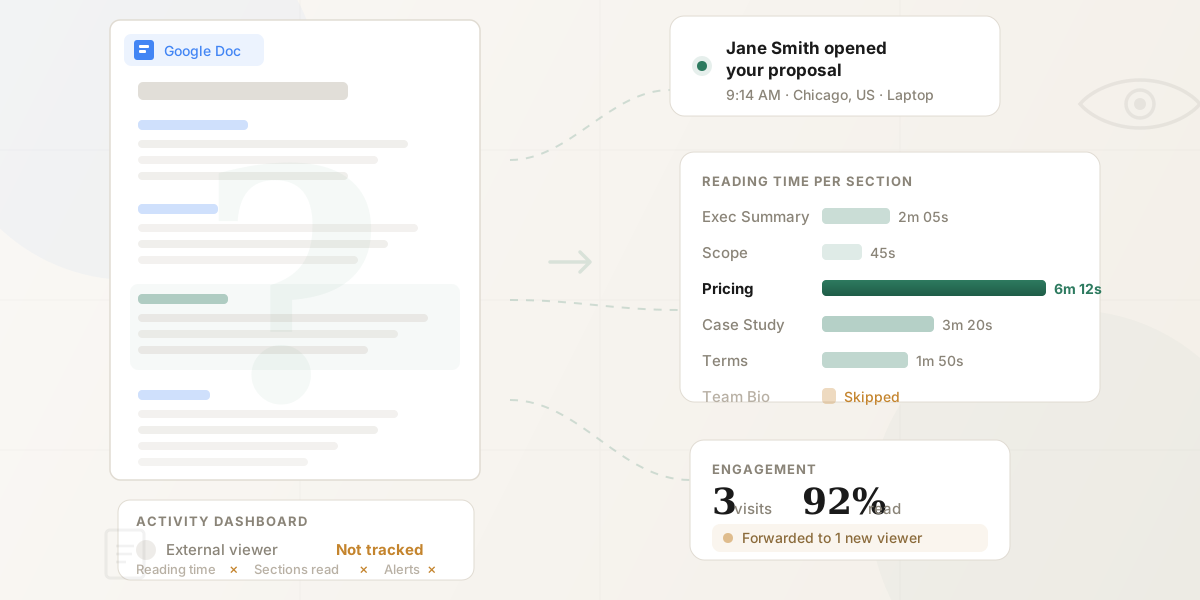
To see who viewed your Google Doc, open the file and go to Tools → Activity dashboard → Viewers. That shows the people inside your Google Workspace who opened it, with names and last-viewed times. It will not show external viewers, personal Gmail users, or what anyone actually read. For that, you share the doc as a tracked link with per-page analytics.
You sent a proposal, a contract, or an offer letter as a Google Doc. The recipient hasn't responded. The question isn't just "did they open it?" — it's "did they actually read it?"
Google Docs has a built-in Activity Dashboard that shows basic viewer information. But for the documents where tracking matters most — anything shared externally with prospects, clients, candidates, or investors — it has fundamental limitations. This guide covers what Google Docs can and can't tell you, and how to get the engagement data you actually need.
Short on time?
Google's Activity Dashboard only tracks internal Workspace users. To track external viewers with per-page analytics, use the HummingDeck Google Docs add-on. See the full comparison →
What the Activity Dashboard shows (and how to find it)
Open your Google Doc, click Tools → Activity dashboard (or click the trend-line icon in the top-right toolbar). You'll see:
- Viewers → All viewers: Who opened the file and when they last accessed it.
- Viewers → Shared with: Everyone with explicit access, plus the option to email reminders to people who haven't opened the document.
- Viewer trend: A daily chart of unique views over time.
- Sharing history: A log of when and with whom the document was shared.
This requires a paid Google Workspace plan (Business Standard or above), edit access to the document, and the file must be owned by someone in your Workspace domain. Personal @gmail.com accounts don't have access. For a detailed walkthrough of the Activity Dashboard steps, see our Google Slides tracking guide — the process is identical across Docs, Sheets, and Slides. You can also track external Google Slides viewers with the HummingDeck add-on.
The problem: documents need deeper tracking than decks
A slide deck is a visual overview. A document is where the details live — the pricing breakdown on page 6, the liability clause in section 4, the non-compete language buried on page 11. When someone reviews a document, where they spend time matters far more than whether they opened the file.
This is where Google Docs' tracking breaks down — not just because of platform limitations (though those are real), but because the type of visibility you need for documents is fundamentally different from a simple open/not-opened signal.
You can't tell reading from opening
The Activity Dashboard treats "opened the file" and "read the document" as the same event. They're not. A prospect could open your 15-page proposal, glance at the first paragraph, and close the tab. The dashboard would show the same result as if they'd spent 20 minutes carefully reviewing every section.
For a quick internal memo, this distinction doesn't matter. For a contract, a detailed proposal, or an offer letter, it's the difference between "hasn't engaged yet" and "ready for a follow-up call."
Edit activity creates a false sense of visibility
Google Docs' Suggesting mode and Version history are excellent collaboration tools. You can see who made edits, who left comments, who accepted or rejected suggestions. This creates an illusion of knowing how someone interacted with your document.
But editing and reading are different activities. A client could open your contract, scroll directly to the signature block, and sign without reading the indemnification clause. Version history would show nothing unusual. Someone reviewing a proposal might read the competitive analysis section three times because they're comparing you against another vendor. You'd never know.
The documents where tracking matters most — contracts, proposals, agreements — are precisely the ones recipients review without making changes. They read, they think, they discuss internally. None of that shows up in version history.
The reading gap is invisible
According to research compiled by Invesp, 48% of salespeople never even attempt a follow-up — and 60% of customers say "no" four times before saying "yes." But without knowing what your prospect actually read in your proposal, every follow-up is a shot in the dark. Did they study your pricing for six minutes or skip it entirely? The Activity Dashboard can't tell you.
External recipients are invisible
The Activity Dashboard only reliably tracks viewers within your own Google Workspace organization. Share a proposal with a prospect at another company, and their views either don't appear or show up as anonymous bumps in the Viewer trend chart. Share with "Anyone with the link" — the most common setting for external sharing — and individual viewers can't be identified at all.
The person you most need to track — the external recipient deciding whether to buy, sign, or accept — is the one Google Docs can't see. If you're looking for tools that solve this, see our breakdown of platforms built for external proposal tracking, each evaluated on per-page reading and stakeholder-level visibility.
There are no notifications
Google Docs doesn't alert you when someone opens your document. You have to manually check the Activity Dashboard. If a prospect opens your proposal at 9 AM and you don't check until the afternoon, you've missed the moment they were actively engaged.
The MIT/Kellogg Lead Response Management Study found that responding within 5 minutes of engagement makes you 21x more likely to qualify the lead. Without real-time alerts, you can't act on that window.
What document tracking actually looks like
Compare what Google Docs tells you against what's possible with a dedicated tracking link:
Google Docs Activity Dashboard tells you: "Someone in your org opened this file on Tuesday."
A tracked document link tells you: "Jane Smith at Acme Corp opened your proposal today at 9:14 AM from her laptop in Chicago. She spent 2 minutes on the executive summary, skipped the team bio section, spent 6 minutes on pricing (pages 5–7), clicked the link to your case study on page 4, and came back this afternoon to re-read the pricing section. This is her third visit in two days."
That's the actual difference between native Google Docs tracking and sharing through a platform with per-page analytics.
| What you learn | Google Docs Activity Dashboard | Tracked link |
|---|---|---|
| Did they open it? | Yes (internal only) | Yes (anyone) |
| When did they open it? | Yes (manual check) | Yes (real-time notification) |
| Did they actually read it? | No | Yes — per-page time tracking |
| Which sections did they focus on? | No | Yes — time per page/section |
| Where did they lose interest? | No | Yes — drop-off analysis |
| Did they click links in the document? | No | Yes — click tracking |
| Did they come back for another look? | No | Yes — return visit tracking |
| Did they share it with someone else? | No | Yes — new viewer detection |
| What device/location? | No | Yes |
| Can you control downloads? | No | Yes — toggle per link |
| Can you revoke access instantly? | Only by changing sharing settings | Yes — one-click revoke |
How to track a Google Doc properly
Google Docs' tracking limitations aren't a bug you can work around with settings — they're architectural. The Activity Dashboard can only see what happens inside Google's own viewer, within your own Workspace domain. External recipients open the file in a context Google can't instrument.
The fix is straightforward: instead of sharing a Google Docs link directly, share your document through a web-based viewer that logs every interaction. The recipient clicks a link and reads your document in a clean, professional reader. Every page view, every click, every second spent reading is recorded and attributed to them by name — regardless of what email provider they use.
There are two ways to set this up.
Option 1: Share directly from Google Docs with an add-on
If you don't want to change your workflow, HummingDeck's Google Workspace add-on generates a tracked link from inside Google Docs — no downloading or re-uploading needed. Build your document in Docs, click the add-on in the sidebar, create a link, share it. The recipient sees a clean viewer. You see full per-page analytics and real-time notifications.
This is the fastest path: you stay in Google Docs, skip the export cycle, and get the same analytics you'd get with a dedicated tracking platform.
Option 2: Download and upload to a tracking platform
Go to File → Download in your Google Doc and choose PDF Document (.pdf) or Microsoft Word (.docx). PDF is usually the better choice for external sharing — it locks the formatting, prevents unintended edits, and renders consistently across devices. If you go the PDF route, you can track if someone opened your PDF with per-page analytics.
Upload the file and share PDFs with per-page tracking. The recipient sees a clean viewer. You see the same full analytics. If you typically send documents as email attachments, see our guide on tracking email attachments for why tracked links work better.
Four scenarios where this changes the conversation
Sales proposals
You send a 12-page proposal. With Google Docs, you wait three days and send a generic "just checking in" follow-up. With per-page tracking, you see the prospect spent six minutes on pricing and zero time on your company background section. Your follow-up becomes: "I saw you had a chance to review the proposal — happy to walk through the pricing tiers in more detail. Would Thursday work?" For more on this workflow, see how to know if someone read your proposal.
Contracts and agreements
You share a contract for review. A week passes with no response. With Google Docs, you check the Activity Dashboard and see nothing — the recipient is external. With tracked links, you see they've opened the contract three times, spending most of their time on sections 4 (liability) and 7 (termination). You know legal is reviewing it. You reach out to proactively address those clauses instead of waiting in the dark.
Offer letters and candidate packages
A recruiter sends an offer letter and benefits overview. The candidate opens it within an hour, spends eight minutes on the compensation section, shares the link with someone else (likely a partner or advisor) who also reads the compensation page, and comes back two days later to re-read the equity vesting section. The recruiter knows the candidate is seriously considering the offer, that compensation is the key factor, and that another person is involved in the decision — all without a single email exchange.
Client deliverables
An agency sends a strategy document through a branded client portal. In the next meeting, instead of opening with "did you get a chance to review the doc?" — which puts the client on the spot — the account manager already knows the client spent 15 minutes on the competitive analysis, skimmed the timeline, and never opened the budget appendix. The meeting starts with the sections the client actually cares about.
Strongest buying signal
Multiple viewers from the same company on the same day. When your prospect forwards the document to their CFO, legal team, or boss, you see new viewers appearing. That means the deal is being discussed internally — don't wait, offer to help.
Frequently asked questions
Can you see who viewed a Google Doc with a personal Gmail account?
Personal @gmail.com accounts need a third-party tracking platform: Google's Activity Dashboard is paid-Workspace-only and not available on free Gmail. Download your doc as PDF and share it through a tracking platform to capture viewer data.
What's the difference between view history and version history in Google Docs?
View history (the Activity Dashboard) shows who opened the document and when. Version history (File → Version history) shows who changed the document and what they changed. Neither tells you what someone actually read — only that they opened the file or made an edit.
Can a Google Workspace admin see who viewed any document?
Yes, through the Drive audit log (Admin Console → Reports → Audit → Drive). This records file access events including views and is more comprehensive than the user-facing Activity Dashboard. However, it's designed for compliance and security auditing — not for tracking engagement with individual documents shared externally.
Can someone view my Google Doc without me knowing?
Yes. If they're outside your Workspace organization, if they've disabled their view history in privacy settings, or if the file is shared with "Anyone with the link" — their views won't appear in the Activity Dashboard.
Does Google Docs tell you how long someone spent reading?
Per-page reading-time tracking requires a document analytics platform. Google's Activity Dashboard records file opens but not duration or which sections were viewed. Share through a tracking platform to see time-on-page and section-level engagement. You can also track when someone opens an email attachment if you typically send documents as attachments.
Does Suggesting mode tell you what someone read?
Suggesting mode only shows the edits someone proposed and the comments they left, not the passive reading that makes up most of document review (scrolling, re-reading paragraphs, considering terms). To capture passive engagement, share through a document analytics platform that tracks page-level activity.
Summary
Google Docs' Activity Dashboard answers a narrow question: did someone within your organization open this file? For internal collaboration, that's often enough.
But documents are where business decisions happen. Proposals get evaluated, contracts get scrutinized, offers get weighed. The engagement depth you need goes far beyond "opened" — you need to know what they read, what they skipped, what they came back to, and when they're ready to talk. When you're sharing more than one document with the same buyer, a digital sales room keeps every file and its analytics under one link.
When those documents support a new-client rollout, a customer onboarding portal keeps the plan, resources, and customer actions under the same link.
By sharing a tracked link instead of a raw Google Docs URL, you turn every shared document into a window into your recipient's engagement. For a closer look at how DocSend and its alternatives compare for this workflow, see our DocSend alternative guide. And if you're weighing dedicated deal-room platforms, our digital sales room software comparison ranks the top tools by price and features.