
Updated October 22, 2026, with Claude's current sharing and export options from Anthropic's help center and Academy.
To share a Claude artifact, open it and choose Share. The options depend on the artifact type and your plan. New designs and slide decks live under Artifacts, so older Claude Design tutorials can show different controls.
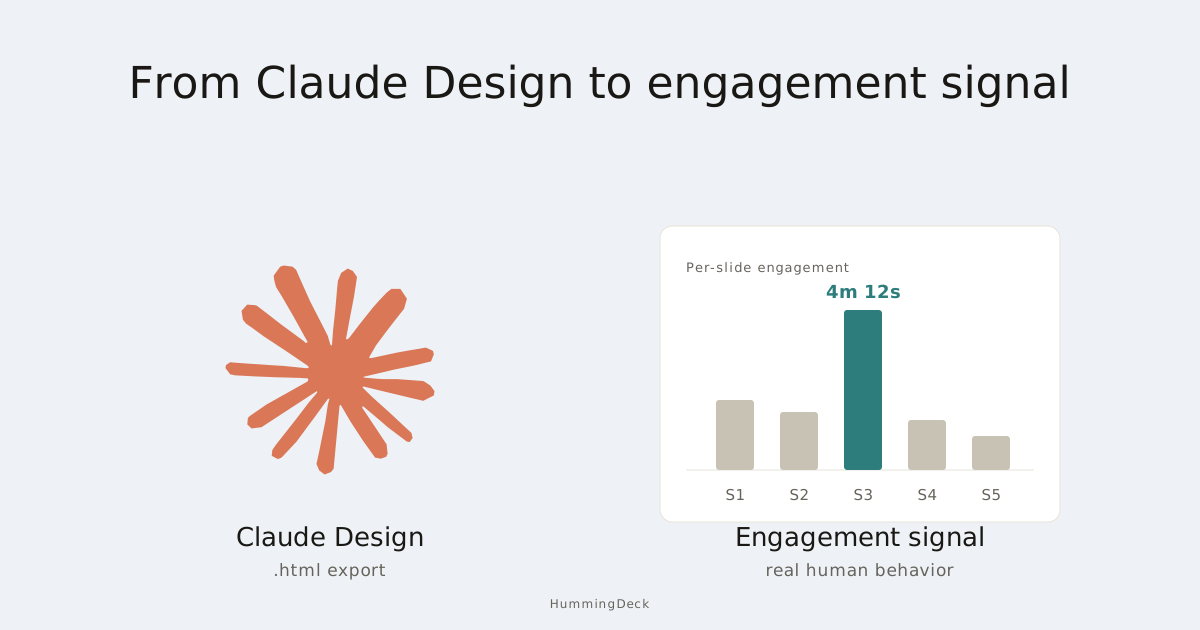
Claude's own sharing suits people who already use Claude and want to collaborate. When you're sending a finished design, deck or interactive page to a client, you can also export it and share it as a HummingDeck link. HummingDeck is our product: the client opens the link in any browser without a Claude account, and you see when they open it and how long they stay.
Standalone Claude Design closes December 14, 2026
Design continues inside Claude, but public links to standalone projects stop working after closure. If a client or investor has one of those links, export the design and send a replacement link before December 14. Anthropic's migration guide covers saving chats, comments and project archives. Open an archive before you host it, because it isn't necessarily a ready-to-host webpage.
Choose how to share your Claude artifact
| What you made | Share inside Claude | Send a file instead |
|---|---|---|
| Design, website or prototype | Link or email invitation; recipients need a Claude account | HTML for an interactive copy; PDF for a static one |
| Slides | Link to view, comment or edit | HTML with transitions, PowerPoint or PDF; Google Slides for editing |
| Docs | Link only; recipients need a Claude account, and Team and Enterprise limit outside sharing | Word, PDF, Markdown or Google Docs |
| Custom interactive artifact | Public link that opens without sign-in, with some features unavailable | HTML; saved entries and connected tools don't carry over |
| Claude Code HTML page | Public link that opens without sign-in | The HTML file, to host anywhere |
| Dashboard with connected data | Share in Claude; what recipients see depends on their access to the data | Keep it in Claude so the data stays live |
| Chat artifact made before September 16, 2026 | Publish or Share & copy link | Check what the download contains before hosting |
HummingDeck turns the HTML, PDF, PowerPoint and Word exports in the right-hand column into links your recipient opens in any browser without a Claude account. That includes interactive HTML that runs JavaScript or packaged React.
How to share a Claude Design with others
If the person you're sending to already uses Claude, share the design from inside Claude:
- Open the design on the web or desktop app and choose Share.
- Choose Anyone with the link, if it's available, or invite someone by email.
- Copy and send the link. Anyone you invite also gets an email.
Pro and Max can share eligible designs outside your organization. On Team and Enterprise, owners control external links and email invitations separately, and can allow them for individual designs. If an option is missing, Anthropic's sharing guide lists what each plan allows.
To share with selected people only, invite them by email and choose each person's access level. Then set general access to Only people invited on Team and Enterprise, or Only you on Pro and Max. Each person needs a Claude account under the email address you invited.
Public sharing is restricted for artifacts that use Claude or connected apps, so check the options yours offers. To share a project's knowledge and instructions rather than a finished artifact, see how to share a Claude Project.
How to publish a Claude artifact
Three kinds of Claude artifact can open for people who aren't signed in to Claude:
- Chat artifacts made before September 16, 2026, which Publish makes public on Free, Pro or Max. On Team and Enterprise, these older artifacts use Share & copy link, and recipients need an account.
- Custom artifacts set to Anyone with the link. Some features don't work for signed-out viewers, as Anthropic's custom-artifact tutorial explains.
- HTML pages from Claude Code, which Claude Code can share as public links.
Designs, slide decks and docs use Share instead, and Design and Docs links need a Claude account. For those, or when you want to restrict access and see visits, export the file and share it as a HummingDeck link.
When your recipient doesn't use Claude
HummingDeck shares exported Claude artifacts, interactive HTML pages, PDFs and PowerPoint files as links recipients open in any browser without an account, with visit analytics and, on Pro and Business, email-verified access. It records each open and how long the visit lasted, and on Starter and above, the time spent on each page or section.
Here's how that compares with sharing a design from Claude:
| What you need | Sharing from Claude Design | Sharing an export through HummingDeck |
|---|---|---|
| Recipients without a Claude account | They need to create one | They open the link in any browser |
| People outside your organization | If your plan or owner allows it | Open links on every plan; Restricted links on Pro and Business |
| Only selected people | Email invitations with access levels | Allowed email addresses on Pro and Business |
| Remove access | Remove the invitation and turn off broader link access | Remove the allowed address or revoke the link |
| Viewer activity | Live colleague presence on Team and Enterprise | Recorded opens and visit time; page or section time on Starter and above |
Revoking a HummingDeck link blocks new visits through that URL. Copies a recipient already downloaded stay with them.
Step 1: Export your design or presentation
Export the format that fits what you made: HTML or PDF for a design; HTML, PowerPoint or PDF for slides; Word or PDF for a doc. Open the downloaded file outside Claude and check it before uploading.
For a design, Share → Export saves the whole prototype as HTML. Individual artboards can also export as an HTML ZIP, PNG or PDF, and all artboards can go into one PDF.
For slides, the Download menu includes Web page (.html), which keeps transitions, plus PDF and PowerPoint. Choose HTML when the deck should play in a browser. PowerPoint leaves out transitions, and HummingDeck shows PowerPoint files as static slides. Google Slides is another option when someone needs to edit the deck.
For a doc, choose Export, then Word or PDF, and check fonts, images and page breaks. For HTML, click through the navigation and buttons outside Claude first, then again through the recipient link.
Step 2: Upload to HummingDeck
In Document Library, choose Add document and upload the file. When processing finishes, look over the layout and the pages or sections HummingDeck detected. Then create a test link and open it in a private browser window to see what your recipient will see.
A single HTML file works on the Free plan. A multi-file HTML export packaged as a ZIP opens in the browser on Starter and above when it meets the packaging requirements, and a ZIP that can only be downloaded gets no page analytics.
Your own preview and the recipient link can handle some interactions differently, so test links to other sites, buttons and slide navigation through the share URL itself. Use a separate test link so your own visits stay out of the client's analytics. For file preparation, see how to share an HTML file with a client, and for plans and analytics, see sharing interactive HTML with HummingDeck.
Step 3: Choose who can open the link
Create the client link and leave Access on Anyone with the link, so your client can open it without an account. On Pro or Business, you can choose Restricted instead and add their address under Allowed emails, so only someone with access to that inbox can open it.
Under How recipients verify, choose Access link or One-time code. The recipient enters an allowed address, then opens the emailed link or types in the emailed code. Neither needs a HummingDeck account.
Verification confirms that the visitor can open an allowed inbox. It doesn't tell you who is in front of the screen. See pricing for which plans include each access option.
Step 4: Send the link and review visits
Send the client link, then open the document's Links and Analytics tabs to see each recorded visit. On Starter and above, you also see time spent on each PDF page, PowerPoint slide and detectable HTML section.
If HummingDeck detects an HTML file as one page, the recorded time covers the whole page. When a client keeps returning to the pricing section, have the cost breakdown ready for your next call, though activity alone doesn't prove someone read or understood it.
One person on a second browser or device can show up as another viewer, so an extra viewer doesn't prove the link was forwarded. See how to read deck analytics for these limits and how bot visits are filtered.
Troubleshooting sharing and exports
Share or Publish is missing
Sharing settings live in the web and desktop apps, so switch from mobile if you need them. Publish belongs to chat artifacts made before September 16, 2026, and newer artifacts use Share. If Share offers fewer options than you expect, check your plan and your organization's sharing settings.
The recipient sees a sign-in request
Claude Design and Docs links ask recipients to sign in, so check the artifact's access setting first. If your client doesn't have a Claude account and your organization allows sharing files outside Claude, export the file and send a HummingDeck link instead.
The export works differently outside Claude
An exported custom artifact loses saved entries, Claude features and connected tools. Check the file format and that the page's images and other assets load. HummingDeck hosts browser-ready HTML, including JavaScript and packaged React, but a source project needs building first, and a page that needs its own backend belongs on an application host. Create shareable HTML with Claude or ChatGPT has prompts for a file HummingDeck can host, and for a plain public webpage, compare single-file HTML hosts.
FAQ
How do I share a Claude artifact?
Open the artifact, choose Share, and pick an access setting. The options depend on the artifact type, your plan and your organization's controls. To send a finished file to someone who doesn't use Claude, export a supported format and share it as a HummingDeck link, which opens in any browser and records visits.
Can I share Claude Design with someone outside my Anthropic organization?
Yes. Pro and Max offer link sharing and email invitations for eligible designs, and on Team and Enterprise, owners control external links and invitations separately. Recipients need a Claude account, so for someone without one, export the design and send a HummingDeck link instead.
Can Pro or Max plan users share Claude Design?
Yes. Use Share to send an eligible design by link or invite someone by email. Exporting is optional and suits recipients who want a finished file or don't have a Claude account.
How do I restrict who can view a Claude Design share link?
Invite people by email and choose their access level, then set general access to Only people invited on Team and Enterprise, or Only you on Pro and Max. Each person needs a Claude account under the invited address. For an exported file, HummingDeck's Restricted access on Pro and Business admits only people who verify an allowed email address, with no account needed.
Can I see who viewed my Claude Design?
On Team and Enterprise, Claude shows which colleagues have a design open right now. To see when an outside reader opened your design and how long they stayed, export it and share it as a HummingDeck link. On Starter and above, HummingDeck also records time on each supported page or section, though a visit doesn't prove who read it or how closely.
What's the best way to send a Claude Design to a client or investor?
Share from Claude when the recipient uses Claude and you want to collaborate. For a finished design, export HTML or PDF and send it as a HummingDeck link the client can open in any browser, then see when they open it and how long they stay. On Pro or Business, Restricted access ties each visit to an allowed email address whose inbox was verified.
Do recipients need a Claude account to open a shared design?
For Claude Design, yes: Design links and invitations need a Claude account. To reach someone without one, export the design and send it as a HummingDeck link they can open in any browser. Custom-artifact links, Claude Code HTML pages and chat artifacts made before September 16, 2026 and published on Free, Pro or Max can open without sign-in.
What happens to standalone Claude Design links in December 2026?
Anthropic is closing standalone Claude Design on December 14, 2026, and public links to its projects will stop working. Design continues inside Claude. Save the chats and comments you need, and replace links you've sent to clients by exporting each design and sharing it again, for example as a HummingDeck link.
Related:
- How to Share a Claude Project: sharing project knowledge, instructions, and chats.
- How to Share a ChatGPT Website as a Trackable Link: the same workflow for interactive HTML made in ChatGPT.
- How to Share an HTML File with a Client: check your file before sending it.
- Host a Single HTML File: 8 Tools Compared: hosting options for an exported design.
- How to Add Analytics to an HTML Page: five ways to measure visits to an HTML page.
- How to Share a Presentation Online: general deck delivery.
- Why Your Deck Analytics Are Wrong: interpreting visits and filtering automated activity.